Browser + Computer Shield

A simple connection.
A helpful partnership.

Keep both apps up to date, open them normally, and follow these two steps. The current installed apps finish connecting automatically.

  1. Copy your code in Shield

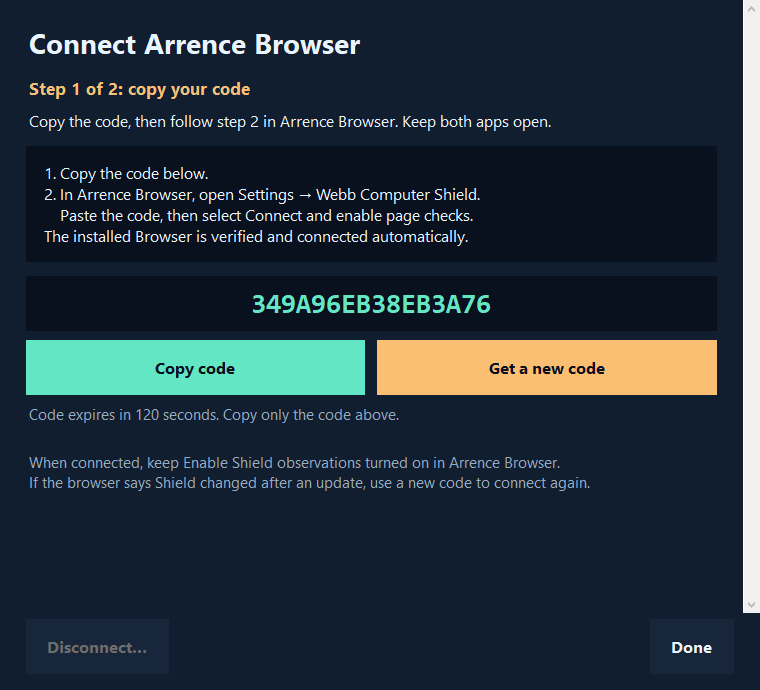
    Open both apps. In Shield, choose Connect Arrence Browser, then Copy code. A code lasts two minutes; Get a new code is right beside it.

  2. Connect in Browser

    In ArRENCE Browser, open Settings → Webb Computer Shield. Paste the code and choose Connect and enable page checks. Confirm the intended Shield app if asked.

  3. You’re connected

    The current installed apps verify each other and finish automatically. Look for Shield: Connected in Browser. Keep both apps open or running in the tray while you browse.

After an update

If Browser says Shield changed, choose Get a new code in Shield and reconnect. With older versions or development builds, an additional approval may still appear; update both installed apps for the current flow.

Computer Shield’s two-step connection screen with Copy code and Get a new code side by side
Copy in Shield, then connect in Browser · Example code Open full size ↗

What each app does

ArRENCE Browser

Your everyday web browser, with ad and tracker filtering, tabs, bookmarks and optional AI help from Ren. It can assess visible warning patterns locally and share signal flags with Shield when page checks are enabled.

Get ArRENCE Browser

Webb Computer Shield

Local desktop monitoring, incident review and fullscreen escape controls. A connected Browser lets Shield request an exit from fullscreen or close the exact observed tab, after you choose an action.

Get Computer Shield ↗

You stay in control

Enable Shield observations in Browser for page checks. Private sessions have a separate opt-in and are off by default. Only signal flags and opaque page identifiers pass to Shield—not page text, URLs, images, titles, form fields or browsing history.

Ren’s AI service is separate. Choosing Send page to AI sends the selected page content to that service. The Browser–Shield connection is local to your computer.

If you don’t see Connected

  • Keep both apps running normally under the same Windows user.
  • Use a fresh code; codes expire after two minutes and can be used only once.
  • Update both apps and check that Enable Shield observations is on in Browser.
  • After an update, reconnect to the Shield installation you intended to use.
  • If a fullscreen alert appears, pause and review it. No tool can certify that a page or connection is safe.
Still stuck? Contact support ↗